 |
 |
 |
|---|---|---|
| Ex 2.3: Annotation Hierarchy | • | Ex 2.5: The magic wand tool |
2.4 Annotation Measurements
Aim:
- Display the annotation measurements of an image
- Add additional shape measurements
- Add additional intensity measurements
2.4.1 Display the annotation measurements of an image
Make some annotations on an image, then run Show annotation measurements from the menu Measure.
What measurements are included by default?
Save the measurements to a tab-separated text file using the save button on the Annotation Measurements window. Import the saved file into your preferred spreadsheet software.
2.4.2 Add shape features
Select all annotations ( +
+  +
+  ) and run
 Add shape features... from the menu Analyze>Calculate Features.
What are the additional shape measurements?
Run Show annotation measurements from the menu Measure again and verify that the additional measurements are present now.
2.4.3 Add intensity features
Run Add intensity features... from the menu Analyze>Calculate Features. Select some features for some channels and add them to the measurements. Run Show annotation measurements from the menu Measure again and verify that the additional measurements are present now.
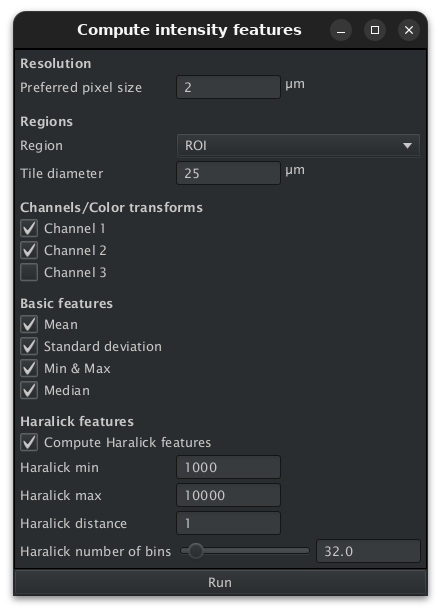
Fig. 2.4.1 – Adding intensity measurements.
Note
To add Haralick features you need to provide the minimal and maximal value that are relevant for the texture under consideration.