 |
 |
 |
|---|---|---|
| Ex 2.1: Creating an annotation and setting its properties | • | Ex 2.3: Annotation Hierarchy |
2.2 Area, Line and Point Annotations
Aim:
- Get to know the different annotation tools
- Lock annotations to avoid manipulations
2.1.1 The different annotation types
Make 2 arbitrary annotations of each annotation type. Select an annotation and look at the measurements on the annotations-tab.
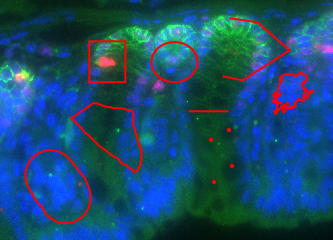
Fig. 2.2.1 – Annotations of different types.
What measurements are displayed for
- area annotations?
- line annotations?
- point annotations?
2.1.2 Locking annotations
Double-click an annotation and change its size, using the handles that appear when the annotation is selected.
Now select all annotations in the annotations list and lock them. Then try again to change the size of one of the annotations.
What has happened?
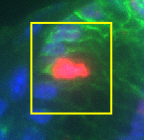
Fig. 2.2.2 – The selected annotation has no handles because it is locked and can not be modified.