 |
 |
|---|---|
| Ex 1.2: Sharing a project | • |
1.3 Organizing the images in a project
You can modify the thumbnail size, sort the images in the list by their metadata and add new key value pairs to the metadata.
From the context menu of the image list (right click on the name of the project or on an empty space in the list), change the thumbnail size to large.
You can sort the images by name, id and uri (the path for local images). However in our example all three criteria result in the same order. Imagine that you have many images from an experiment with different conditions and controls. It could be useful to sort and group the images accordingly.
Imagine the first two images are from the condition ex1 and the last image is a control.
- Select the first two images (you can use the usual
 +
+ to select multiple entries or
  + to select a range)
 - Add a new metadata field with the key
conditionand the valueex1to these images - Select the third image
- Add a new metadata field with the key
conditionand the valuecontrolto these images - Sort the images by
condition
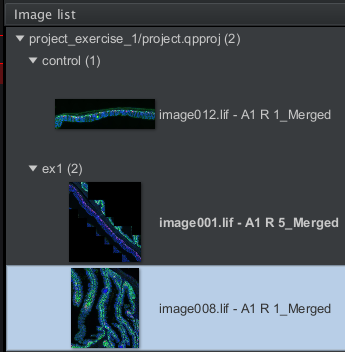
Fig. 1.6 – Images sorted by the newly added metadata field
condition.
Newly imported images, that do not have the metadata field will be in a category Unassigned. It is therefore possible to import the images of the different categories one after the other and each time add the metadata to the images in Unassigned.