 |
 |
|---|---|
| • | Ex 1.2: Sharing a project |
1. Project Creation
In the exercises of the first secition you will learn
- how to create a new project and import images
- how to share a project with someone else
- how to organize the images in a project
1.1 Creating a new project
Goals:
- Learn the basic steps to create a new project in QuPath
- Understand the main decisions you have to make when importing images into the project
- Understand how QuPath organizes projects
1.1.1 Project Creation
To create a new project you need to point QuPath to an empty folder. This folder will be come the project folder and its name will be the name of the project.
Open QuPath press the Create Project...-button on the project-tab. This will open a file dialog. Use the file dialog to select an empty folder with the name project_exercise_1.
Note
You can either create the folder beforehand or use the file dialog to create and select the folder.
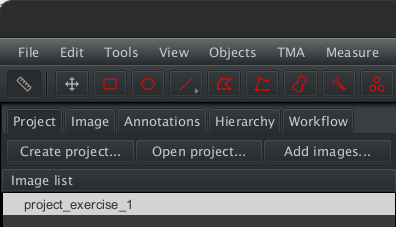
Fig. 1.1 – An empty project with the name
project_exercise_1.
1.1.2 Importing images
You will import the 3 lif-images from the folder 01_multiplex_fluo into the project.
Press the Add images...-button on the project-tab. This will open the Import Images-dialog. Drag-and-drop the images from your operating systems's file-browser onto the drop-zone of the dialog. Alternatively you can select them via the Choose files-button.
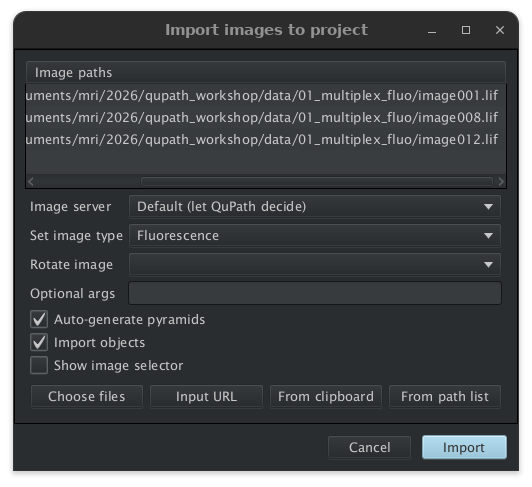
Fig. 1.2 – Importing images into the
project_exercise_1.
- Let QuPath decide which image server to use
- Set the correct image type
- Let QuPath create the image pyramids
Once imported you can open an image by double-clicking on its entry in the image list.
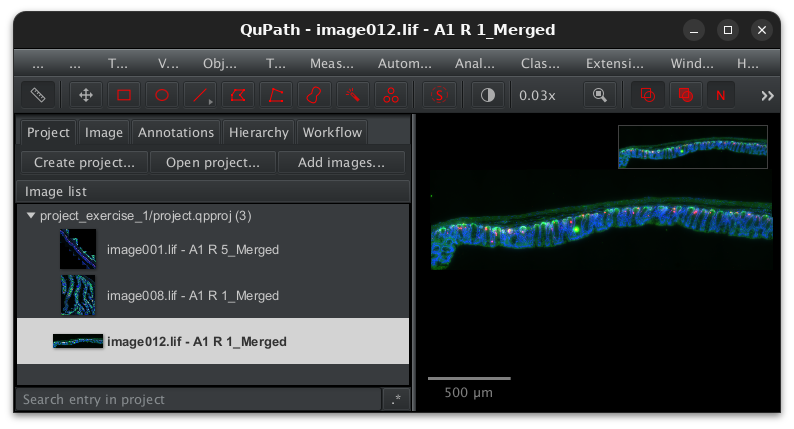
Fig. 1.3 – A double-click on a thumbnail, opens the image in the image viewer..
Close Qupath and open it again. Open the saved project by selecting it from the list under the menu File>Project>Recent Projects....
After re-opening the project, you find the images imported before. You will see later that also other objects, like annotations, detections, scripts and classifiers are saved in the project.