 |
 |
|---|---|
| Ex 3.2: Setting Stain Vectors from Annotations | • |
3.3 Automatic stain vector estimation
Aim:
- Learn to use the automatic stain vector estimation
Open the image 20.png from the 02_HE_images-dataset. Go to the image-tab. Set the image type to Brightfield H&E if that has not been done yet.
Select a region on the image that contains background as well as both stains. Run the command Estimate stain vectors from the menu Analyze. Qupath will ask you if you want the background to the modal values it found in the region and then opens the Visual Stain Editor.
Modify the 3 parameters, Min channel OD, Max total OD and Ignore extrema, so that the vectors vectors tightly surround the majority of the points in the scatter plots.
Display the results of the color deconvolution using the brightness and contrast tool or the channel viewer. Is the result better with the new stain vectors?
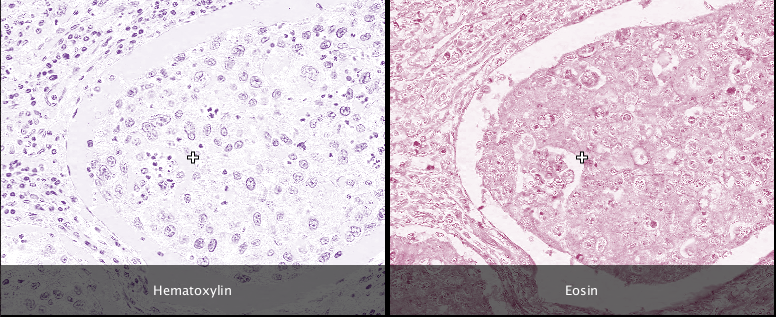
Fig. 3.3.1 – The stain separation is better now than with the default values.
Note
The background values proposed, might not be accurate if the background is not the largest zone in the selected region. You can do the background and stain estimation in two steps. Select a background region and run the estimate stain vectors command. Accept the background values. Close the visual stain editor. Select a different region containing samples of both stainings and run the estimate stain vectors command again. This time do not accept the proposed background values.