 |
 |
 |
|---|---|---|
| Ex 2.5: The magic wand tool | • | Ex 2.7: Splitting Annotations |
2.6 Classifying annotations
Aim:
- Learn how to classify annotations
- Make annotations of tumor and stroma regions
- Classify the annotations as
stromaandtumor
2.6.1 Annotate the stroma and tumor regions
Create a new project and import the images of the dataset 02_HE_images. Open the image 101. Use the wand tool to annotate tumors and stroma.
2.6.2 Classify the annotations
Classify the annotations using the classes Tumor and Stroma.
What happens to the colors of the annotations after they are classified?
What happens to the order of the annotations in the Annotation list after they are classified?
Tip
- To classify an annotation select the class in the
Class list. Select the annotation and press theSet selected-button under the class list. - Alternatively use the the
Set classificationsubmenu from the annotations context menu. - When you select multiple annotations and set a class, all selected annotations will be classified.
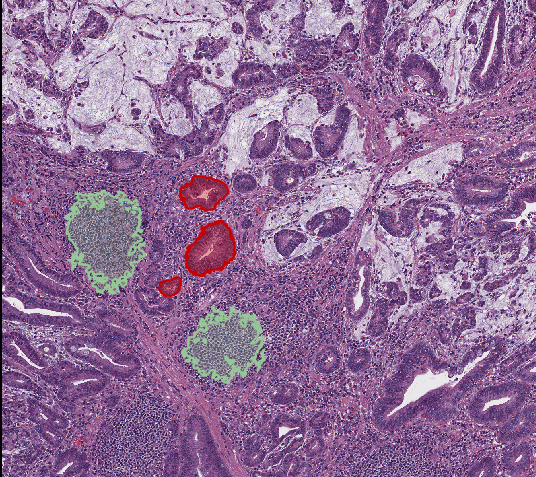
Fig. 2.6.1 – Annotations classified as tumor and stroma.